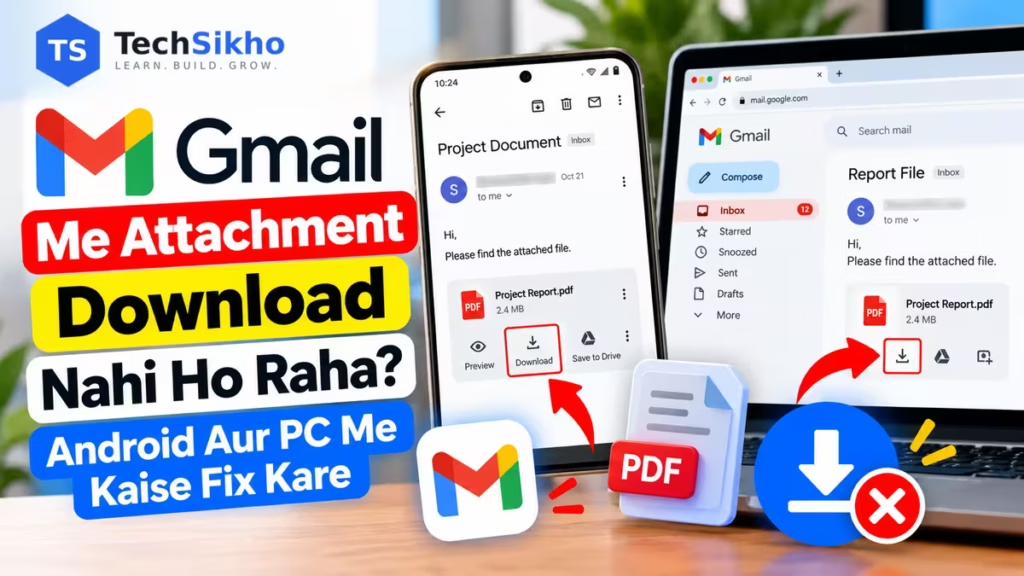
Gmail Me Attachment Download Nahi Ho Raha, lekin email aur PDF ya photo ka preview dikh raha hai? Pehle yeh pata karein ki download shuru nahi ho raha, beech me ruk raha hai, ya file save ho chuki hai aur mil nahi rahi. In teeno ke checks alag hain.
Yeh guide received email ki attachment ke liye hai. Neeche apne symptom se shuru karein; har setting badalna zaroori nahi. Virus, suspicious file ya organization ki restriction dikhe to normal download fixes aage badhane se pehle us warning ko samjhein.
Gmail Me Attachment Download Nahi Ho Raha? Apna Case Pehchanein
Yeh table agla sahi check chunne me madad karti hai; kisi ek symptom se exact wajah confirm nahi hoti.
| Aapko kya dikh raha hai? | Pehla check | Relevant section |
|---|---|---|
| Download shuru hi nahi hota | Asli Download control hai aur respond kar raha hai? | Attachment controls |
| Download shuru hokar ruk jata hai | Connection, device space aur exact error | Android / Chrome errors |
| Preview khulta hai, download fail hai | Local transfer ka status alag dekhein | Preview wala case |
| Suspicious ya virus warning hai | Download rok kar warning padhein | Security checks |
| Confidential email me Download nahi hai | Sender ki restriction | Confidential Mode |
| Email ka file link Drive kholta hai | Shared account aur file permission | Drive link ka case |
| Download hua, file nahi milti | Asli saved location | Local file dhoondhein |
| File mil gayi, lekin khulti nahi | Format, complete copy aur viewer | File opening problem |
| Sirf ek email ya sender ki file fail hai | Us message aur file ko alag check karein | Ek file ya sab? |
| Har Gmail attachment fail hai | App, browser, network ya managed policy | Comparison se shuru karein |
Download, Preview Aur Save to Drive Ka Farq
- Download: phone ya PC par local file save karta hai.
- Preview: file dikhata hai; sirf preview khulne se Downloads me copy hone ki pushti nahi hoti.
- Save to Drive / Add to Drive: Google Drive me save karne ka action hai. Iska matlab phone ya PC par alag file download hona nahi hai.
Android Par Sahi Download Control
- Gmail app me received email kholein.
- Attachment card ke Download, yani neeche arrow wale icon par tap karein.
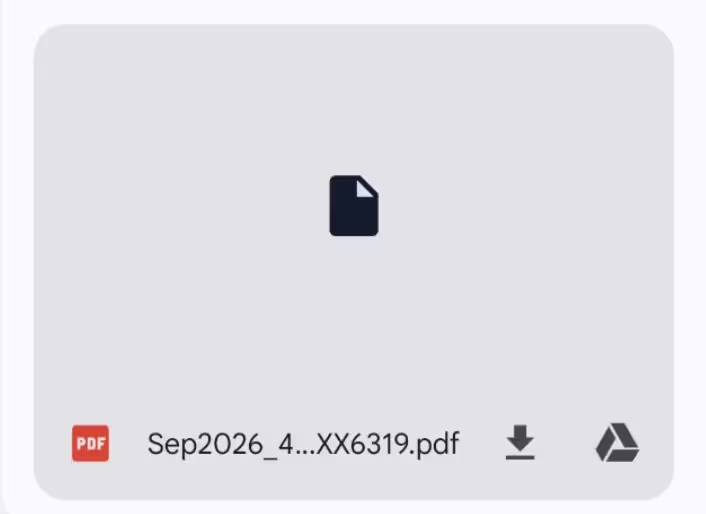
Yeh Google ka Android attachment-download flow hai. Icon ki jagah app version ke hisaab se badal sakti hai. Photo seedhe message me ho to inline image wala tareeka dekhein.
Windows 11 Par Gmail Attachment
- Chrome me Gmail kholein aur received message select karein.
- Message ke attachment par mouse le jayein aur Download icon click karein.
- Save dialog aaye to location chun kar Save karein.
Gmail ki computer guidance bhi attachment par hover karke Download batati hai. Puri conversation me file na mile to woh purana message kholein jisme attachment aayi thi; reply me original attachment apne aap shamil nahi hoti.
Sirf Ek Attachment Fail Hai Ya Sabhi?
Warning ke bina aayi hui, pehchane sender ki ek doosri expected attachment se compare karein. Har comparison me ek hi cheez badlein, taaki result samajh aaye.
- Doosri attachment chalti hai: pehli file ka warning/access message dekhein. Ek sender ke kai messages fail hon to dekhein kya sab Drive links, confidential emails ya ek hi file type ke hain. Sirf sender ka naam wajah confirm nahi karta.
- Wahi normal attachment apne PC par chalti hai, phone par nahi: Android app, phone storage aur uske network se jaanch shuru karein. File ko dobara bhejna pehla zaroori step nahi.
- Har attachment fail hai: ek pehle se bharosemand website ka harmless download bhi check karein. Wahan bhi failure ho to device, browser ya network ki broader problem ho sakti hai; Gmail-only failure ka raasta alag hai.
Yeh results sirf jaanch ki disha dete hain. Sirf ek file dono devices par fail ho aur security restriction na ho, to sender se original copy kholkar check karne aur zaroorat par fresh copy bhejne ko kahein. Restricted office file ko test ke liye personal account me forward na karein.
Android Gmail Me Download Loading Par Atka Hai
Yeh checks tab karein jab normal attachment ka Download control available ho aur koi security ya access warning na ho. Har check ke baad usi attachment ki local copy dekhein; file mil jaye to aage ke changes rok dein.
1. Email Dikh Rahi Hai, Lekin Connection Chal Raha Hai?
Pehle se khuli email ko internet chalne ka proof na maanein. Browser me koi trusted webpage naya load karein. Woh bhi na khule to pehle connection theek karein. Webpage khul jaye, lekin attachment atke, to apne trusted Wi-Fi aur available Mobile data par ek-ek baar compare kar sakte hain. Data charges aur office ki network policy ka dhyan rakhein.
Is test ke dauran Gmail khula rakhein. Ek network par download complete hona network ki taraf sanket hai; dono par fail ho to neeche storage aur app checks karein. Sirf ek chhota webpage chalna har download service tak pahunch ki guarantee nahi hai.
Data Saver kab dekhein? Agar Mobile data par app chhodte hi transfer rukta ho, tab phone ke app-data controls relevant ho sakte hain. Google ki Data Saver guidance background data aur active app ke data ko alag batati hai. Gmail khula hone par failure se background data ya battery setting ko wajah maan kar sab restrictions band na karein. Phone brand ke controls alag ho sakte hain.
2. Phone Ki Local Storage Check Karein
Phone ki Settings me Storage search karein. Jagah bahut kam ho to apni pehchani hui unnecessary files review karein aur zaroori data ka backup banakar hi kuch hatayein. Google ki Android storage guidance local space ke liye hai. Jagah milne ke baad wahi attachment dobara download karke saved file check karein.
Phone storage aur Google Account quota alag hain. Google Drive personal account ke shared cloud quota ka hissa hai. Google ki quota guidance full account me nayi email bhejne/receive karne aur Drive upload ki restrictions batati hai. Isse yeh nateeja na nikalein ki pehle se received har attachment ka local download bhi band hai. Isi tarah Save to Drive ka error local Download ka error nahi hai.
Account me storage warning bhi ho to Gmail storage full hone wali guide se use alag handle karein. Attachment ki local copy lene ke liye bina wajah cloud plan kharidna ya mailbox saaf karna shuru na karein.
3. Problem Sirf Gmail App Me Bachi Ho To
- Google Play Store me Gmail ki official listing kholein. Update available ho to lagayein, phir Gmail dobara kholkar wahi received attachment test karein. Gmail app update Help se official listing bhi milti hai.
- App respond na kar rahi ho to apna adhura draft save karke Gmail band aur dobara open karein. Dikkat bani rahe to phone restart karke test karein.
- Network aur space sahi hon, lekin kai attachments sirf app me fail hon, tab Settings > Apps > Gmail > Storage & cache ya Storage > Clear cache try kar sakte hain. Kuch phones me pehle See all apps kholna hota hai. Dobara Gmail kholkar result check karein.
Android app troubleshooting me restart, update aur cache checks diye hain; menu phone ke hisaab se badalta hai. Clear cache temporary data ke liye hai. Clear storage/Clear data, account removal ya factory reset is guide ka agla step nahi hai. Failure bana rahe to exact error ke saath support details taiyar karein.
Email Ke Andar Photo Hai, Attachment Card Nahi
Maan lijiye pehchane sender ki photo message ke beech dikh rahi hai, lekin neeche attachment card nahi hai. Aisi inline photo ke liye Google ka Android Save flow yeh hai:
- Photo ko touch karke hold karein, phir View image chunein.
- Khuli photo par tap karein.
- Upar right me More kholein aur Save chunein.
Save ke baad local file verify karein. Menu alag ho ya option na mile to sender se photo ko normal attachment ke roop me maang sakte hain. Message me dikhne wali har image attached file nahi hoti; kuch bahar ki website se load hoti hain. Anjaan email ki images ko sirf test ke liye load ya save na karein.
Windows 11 Me Chrome Se Attachment Download Fail Ho
1. Gmail Spinner Ke Saath Chrome Ka Result Bhi Dekhein
Download click karne ke baad Chrome ke upar right download indicator ko dekhein. Woh na dikhe to More, yani three-dot menu > Downloads kholein. Nayi entry ka filename, time aur status milayein. Completed entry ho to file ki location check karein; failure ho to uska exact message padhein.
- Paused ya interrupted: connection theek karke Resume available ho to try karein. Na chale to original received email se ek fresh attempt karein.
- Disk full: jis drive/folder me file save ho rahi hai, usme space dekhein. Pehchani hui files safely manage karein; Google cloud quota is local disk ki jagah nahi badhata.
- Insufficient permissions / System busy: Chrome local file save nahi kar pa raha. Apni writable location chunein; managed folder ki permission khud bypass na karein.
- Needs authorization / Forbidden: file tak access ya sign-in check chahiye. Gmail khud kholkar sahi account se message dobara open karein; error rahe to owner ya admin se poochhein.
- Download blocked / Virus detected / Virus scan failed: security section par jayein. Inhe sirf slow internet ka error na maanein.
In messages ki tafseel Chrome ki official download-error Help me hai. Save location badalni ho to Chrome Settings > Downloads > Location ke paas Change use karein. Office device par approved location hi chunein.
2. Preview Khulta Hai, Download Nahi Hota
PDF ka preview dikhna itna batata hai ki aap uska view dekh pa rahe hain. Isse local file likhne ki permission, free disk space ya download request successful hona prove nahi hota. Preview band karke received message ke asli Download icon se try karein aur Chrome me nayi entry dekhein.
Agar koi entry hi na bane aur restriction na dikhe, to browser-side comparison karein. Entry bane aur fail ho to upar wala exact error follow karein. Attachment lene ke liye Chrome ka Save page as use na karein; usse email ka webpage save ho sakta hai.
3. Browser Aur Extension Ko Ek-Ek Karke Check Karein
- Chrome > More > Help > About Google Chrome me update check karein. Available update ke baad Relaunch karein; pehle unsaved kaam sambhal lein. Phir wahi attachment test karein. Yeh Google ka update route hai.
- Problem rahe to apne trusted PC par updated Microsoft Edge jaise Gmail-supported browser me same account aur attachment compare karein. Work account ho to sirf organization-approved browser use karein. Doosre browser me success Chrome ki settings/profile ki taraf sanket hai, kisi ek extension ka final proof nahi.
- Chrome me More > Extensions > Manage extensions kholein. Apni lagayi hui Gmail modifier ya download-related extension ko ek baar me sirf ek off karke Gmail reload aur download test karein. Farq na pade to use wapas on karein. Farq pade to us extension ka update ya support check karein.
Chrome ki extension Help me on/off controls diye hain. Organization ki managed protection ko band na karein. Incognito ko compulsory test banane ki zaroorat nahi: wahan sign-in/verification lag sakta hai, kuch extensions ko Allow in incognito mila ho sakta hai aur cookie behavior bhi alag hota hai.
4. Cache Ya Cookies Kab Clear Karein?
Wahi attachment doosre supported browser me chalti ho, lekin Chrome me Gmail ka control ab bhi atakta ho, tab purana cached content ek possibility hai. Pehle unsynced Gmail drafts ka zaroori text apni approved safe jagah bachayein aur account password/verification tak access confirm karein. Gmail Offline use karte hain to pending unsent messages ka status bhi check karein; unke sync hone se pehle site data delete na karein.
- Chrome > More > Delete browsing data kholein. Time range chunein aur pehle sirf Cached images and files select karein. Baaki categories uncheck karke Delete data karein, phir Gmail reload karke test karein.
- Problem rahe aur Gmail site data reset karna zaroori lage, to Settings > Privacy and security > Third-party cookies > See all site data and permissions me Gmail ki site entry dhoondhkar review karein. Sirf pehchani hui relevant entry delete karein; poori Google/sites list bina samjhe na hatayein.
Cache aur site data alag categories hain. Cookies delete karne se sign-out, saved site preferences, Gmail Offline ke local data ya pending offline messages par asar ho sakta hai. Gmail ka exact entry pehchan na aaye ya verification available na ho to yahin ruk kar support lein. Drive ke cookie-related fixes ko har Gmail attachment par apply na karein.
Sirf Ek Network Par Gmail Attachments Fail Hoti Hain
Inbox khulna aur baaki websites chalna, attachment service tak pahunch ki guarantee nahi. Google ki attachment availability guidance me mail-attachment.googleusercontent.com ko attachment-hosting domain bataya gaya hai; network filtering uski access ko affect kar sakti hai.
Apne device par wahi trusted file ek authorized network me chale aur doosre me fail ho to network owner, ISP ya office IT ko yeh comparison aur exact error batayein. Har failure ko is domain ka block na maanein. Firewall, proxy, antivirus ya organization ki filtering bypass karke file lene ki koshish na karein.
Suspicious, Virus Ya Blocked Attachment Ko Alag Handle Karein
Pehle dekhein warning Gmail message me hai, Chrome Downloads me, ya device security software me. Dono jagah virus se judi wording ho sakti hai, lekin rokne wala system ek hi hona zaroori nahi.
- Gmail ko known virus mile: incoming infected message reject ho sakta hai. Inbox me pehle se maujood attachment me virus detect ho to Gmail uska download rok sakta hai. Yeh Gmail ki virus-scanning policy ka hissa hai.
- Scanner temporarily unavailable ho: yeh confirmed virus detection se alag hai. Expected attachment ko baad me dobara try karein; bina scan ke force-open karna is guide ka fix nahi hai.
- Encrypted ya script wali attachment: Gmail ki suspicious-attachment guidance password-protected content scan na ho pane aur unverified scripts ko warning ki wajah batati hai. Har password wali file malicious nahi hoti; expected document aur sender ko alag se verify karein.
- File type blocked ho: Gmail certain executable/script files, malicious macros aur kuch archives ko restrict karta hai. Blocked-file guidance sending restrictions bhi samjhati hai; har missing Download button ko blocked extension ka result na maanein.
- Chrome ya antivirus block kare: Chrome download warning aur apne security software ki details padhein. Virus scan failed aur Virus detected ko ek hi confirmed diagnosis na samjhein; protection enabled rakhein.
Sender ko pehle se known phone number ya trusted channel se verify karein. Sirf display name pehchana lagna kaafi nahi. Legitimate document ke liye sender/IT se approved sharing method maangein; Drive link milne se file apne aap safe nahi ho jati. File extension badalna, archive me chhupana ya unknown downloader use karna sahi raasta nahi hai.
Scam email ko report karne ke detailed steps Gmail spam aur phishing guide me hain. Suspicious file ko safety test karne ke liye kholein, extract karein ya install na karein.
Confidential Mode Me Download Option Nahi Milta
Gmail Confidential Mode me message text aur attachments ke download, copy, print aur forward controls disabled hote hain. Message me confidential-access notice, expiry ki information ya passcode requirement dikh sakti hai; har confidential email me SMS passcode zaroori nahi.
Aisi email ka content khul raha ho, lekin Download na mile, to yeh sender ki intentional restriction ho sakti hai. Local copy chahiye to sender se authorized alternative maangein. Access expire ya remove ho gaya ho to unhi se access ke liye baat karein. Missing icon akela Confidential Mode ka proof nahi; inline image aur Drive link ka case bhi check karein.
Attachment Ki Jagah Google Drive Link Ho To
File card ya link kholne par Drive/Docs ki sharing screen aaye, to file ki permission Gmail se alag check hogi. Email mil jana linked file ka access milne ki guarantee nahi hai.
- Wahi apna Google Account use karein jiske saath owner ne file share ki hai.
- You need access aaye to Request access ya owner se permission ka raasta use karein. Google ki access guidance isi account-permission check ko samjhati hai.
- File dikh rahi ho, phir bhi Download unavailable ho, to owner/admin ki restriction ho sakti hai. Viewer access hamesha downloading ki guarantee nahi; Drive ki download Help me yeh fark diya hai.
Sharing roles samajhne ke liye Google Drive upload aur sharing guide dekhein. Permission resolve hone tak Gmail app reset ya doosre account/tool se restriction paar karne ki koshish ka fayda nahi.
Download Ho Gaya, Lekin File Kahan Save Hui?
Android: Files, My Files ya apne phone ka File Manager kholkar Downloads aur recent files dekhein. Gmail ke attachment naam se local file milayein. Files by Google me Recents aur Categories se files dikh sakti hain. Filename ke paas More > File info me location aur modified time dekha ja sakta hai; grid view me pehle file hold karein. Yeh official File info flow hai.
Windows 11: Chrome > More > Downloads me relevant file par Show in folder use karein. Download tray me filename par mouse le jane se bhi yeh action mil sakta hai. Default folder badla ja sakta hai, isliye har file ko Windows Downloads me maan kar na chalein. Chrome ki saved-file guidance actual location dhoondhne me madad karti hai.
Success ko aise verify karein: transfer complete ho, local folder me file abhi maujood ho, naam/type expected ho, aur trusted file suitable app me zaroorat ke mutabik khul jaye. Download history me entry bachne se file abhi device par hone ki guarantee nahi. Sirf Drive me copy dikhne ko local download na maanein.
PDF Ya ZIP Download Ho Gayi, Lekin Open Nahi Hoti
Local file maujood ho to ab file-opening problem alag check karein. Failed/adhoori copy, galat format, damaged original, document password ya compatible viewer ki kami wajah ho sakti hai. File ka naam badalkar .pdf kar dena usse PDF me convert nahi karta.
Example: expected PDF poori download hui, lekin password maangti hai. Is case me Gmail ki download settings badalne ke bajaye issuer se authorized password chahiye. Trusted PDF ka viewer/file check PDF file open nahi ho rahi wali guide me karein. ZIP ek archive hai; uske liye ZIP file aur extraction guide dekhein. Private document ko unknown repair ya unlock website par upload na karein.
Office Account Ya Persistent Error Me Madad Kab Lein?
School/company Google Workspace account, managed browser ya managed network par personal Gmail se alag rules ho sakte hain. Chrome administrators downloads restrict kar sakte hain; Drive-linked files par owner aur organization ki file restrictions bhi ho sakti hain. Policy message aaye to IT/admin se approved access ya sharing method poochhein.
Normal personal attachment par basic checks ke baad bhi failure ho to Gmail Help se relevant guidance ya Help Community kholein. Madad ke liye yeh details kaafi useful hain:
- Exact error aur woh Gmail, Chrome ya device security me kahan dikha.
- Normal attachment, inline image, confidential email ya Drive link.
- File type; ek message fail hai ya doosri attachments bhi.
- Android/Windows version, Gmail app ya browser version.
- Kaunse authorized device/network par compare kiya aur kya result mila.
Public help post me private email, attachment, sender-recipient details ya full screenshot na daalein. Screenshot dena zaroori ho to sirf error ka crop rakhein; passwords, OTPs aur recovery codes kabhi share na karein. Ek hi failed attachment ke liye poora account reset karne se pehle yeh details problem ko sahi jagah tak pahunchane me zyada kaam aati hain.