Gmail Me Email Receive Nahi Ho Rahi To Sabse Pehle Kya Check Karein?
Kisi zaroori reply, bill ya document ka intezar hai, lekin Gmail Inbox khaali dikh raha hai? Agar Gmail Me Email Receive Nahi Ho Rahi, to pehle yeh pata karein ki email account tak pahunchi hi nahi, ya pahunchne ke baad kisi aur jagah chali gayi.
Email Spam, Trash, kisi category ya All Mail me mil sakti hai. Google Account storage, filters, forwarding, phone app ka sync aur sender ki taraf ki problem bhi check karni pad sakti hai. Ek hi email ko web Gmail aur phone app me dhoondhna problem samajhne ka achha pehla test hai.
Email aa chuki hai, sirf notification nahi aayi? Tab us email ki receiving ho chuki hai. Notification permissions aur alert settings alag check hongi; unhe delivery failure na samjhein.
Neeche English menu names diye gaye hain. Gmail ki language, app version, phone brand aur account type ke hisab se naam ya jagah thodi alag ho sakti hai. Filters aur forwarding ki poori checking computer par karna aasaan rahega.
| Problem | Mumkin Wajah | Pehla Check |
|---|---|---|
| Search me email hai, Inbox me nahi | Archive, category ya filter | Email ka label dekhein |
| Web par hai, app me nahi | Account ya app sync | Same account aur refresh |
| Kisi bhi sender ki email nahi aa rahi | Storage, account ya service | Web Gmail aur storage |
| Sirf ek sender ki email missing hai | Spam, block, filter ya sender | Spam aur test email |
Gmail Email Receiving Problem Ke 10 Solutions
Pehle aasaan checks karein. Jahan problem ka pata chale, usi setting ko theek karke ek nayi test email mangwayein. Har setting badalna zaroori nahi hai.
1. Sahi Gmail Account Aur Internet Connection Check Karein
- Gmail app me upar profile photo par tap karein. Poora email address dekhein aur confirm karein ki sender ne isi address par email bheji hai. Multiple accounts hon to sahi account chunein.
- Browser me koi website kholkar internet check karein. Connection na chale to Wi-Fi ya mobile data dekhein; Airplane mode ki wajah se connection band ho to use off karein.
- Gmail app ke Inbox me upar se neeche swipe karke refresh karein. Computer par Gmail ka Refresh button use karein.
- Computer ke browser me gmail.com kholein aur wahi account check karein. Sirf profile photo nahi, poora address match karein.
Web Gmail me email mil jaaye, lekin phone par na mile, to us email ki delivery ho chuki hai. Ab app ke account, display aur sync ki taraf dhyan dein; solution 8 aur 9 isme kaam aayenge.
2. Gmail Search Se Missing Email Dhoondhein
Search bar me pehle sender ka naam, email address ya subject ka koi yaad rehne wala shabd likhein. Result na mile to in examples ka use karein:
from:neha@example.com– kisi sender ki emails dhoondhne ke liye. Example address ki jagah sender ka asli address likhein.in:anywhere from:neha@example.com– us sender ko Gmail me, Spam aur Trash samet, search karne ke liye.in:anywhere subject:invoice– subject me invoice shabd wali email dhoondhne ke liye.in:anywhere newer_than:7d– pichhle 7 din ki emails dekhne ke liye.

Date ya subject pakka yaad nahi hai to us condition ko hata dein. Bahut saari conditions lagane se sahi email bhi result se bahar reh sakti hai. Email milne par uska label aur date dekhein; Inbox se missing hona, email receive na hone ka proof nahi hai.
3. Spam, Trash Aur All Mail Check Karein
Computer: Gmail ke left menu me Spam, Trash aur All Mail kholein. Naam na dikhein to More par click karein. Android/iPhone Gmail app: upar left me teen lines wala Menu kholkar neeche scroll karein. Kuch language settings me Trash ka naam Bin dikhta hai.
- Spam: Galti se spam samjhi gayi email yahan ho sakti hai. Sender aur message pehchanne ke baad hi Not spam ya Report not spam chunein.
- Trash/Bin: Delete hui email yahan dhoondhein. Computer par zaroori email select karke Move to > Inbox karein. App me email ko touch karke hold karein; Android par More > Move to aur iPhone par More > Move kholkar Inbox chunein.
- All Mail: Yahan Inbox wali aur archived emails mil sakti hain. Archive karna ek action hai jo email ko Inbox se hata deta hai; All Mail us email ko dekhne ki jagah hai. Archive karne se email delete nahi hoti.
Archived email ko wapas laane ke liye computer par select karke Move to Inbox chunein. Gmail app me email ko touch karke hold karein, phir More > Move to Inbox use karein. Spam aur Trash ko alag bhi check karein.
Agar category tabs on hain, to Primary ke saath Promotions, Social aur Updates bhi dekhein. Booking confirmation ya bill doosre tab me aa sakta hai. Spam aur Trash ki emails aam taur par 30 din baad automatically permanently delete ho jaati hain; unhe manually empty karne par pehle bhi hat sakti hain. Recovery ko guaranteed na samjhein. Google ki missing emails Help guide me bhi search aur account settings ke checks diye hain.
4. Google Account Storage Full To Nahi Hai?
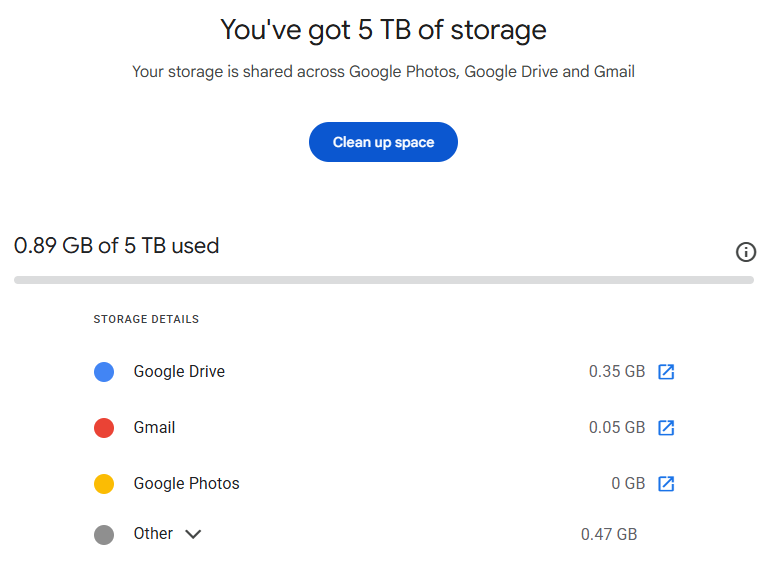
Personal Google Account ka free storage aam taur par 15 GB hota hai, jo Gmail, Google Drive aur Google Photos ke beech shared hota hai. Android ke WhatsApp backups bhi jagah le sakte hain. Apne account ki actual limit aur usage check karein; work/school account ke rules alag ho sakte hain.
Storage limit bharne par Gmail me email bhejna aur receive karna ruk sakta hai. Incoming messages sender ko wapas ja sakte hain. Sirf phone me space khaali karne se Google Account ka cloud storage khaali nahi hota.
- Google One par storage usage kholein. Zaroorat ho to usi Google Account se sign in karein jiski email missing hai.
- Dekhein ki Gmail, Drive ya Photos me se jagah kahan zyada use ho rahi hai. Sirf pehchani hui, bekaar large emails ya files hatayein; zaroori data ki copy pehle rakh lein.
- Gmail ka Spam aur Trash bhi storage leta hai. Inhe empty karne par emails permanently delete hoti hain; pehle zaroori emails nikaal lein.
Google ke mutabik, bahut saari files ek saath delete karne ke baad storage usage update hone me 48-72 ghante tak lag sakte hain. Har cleanup me itna samay lage, yeh zaroori nahi. Google One storage upgrade activate hone me bhi 24 ghante tak lag sakte hain.
Storage limit ke neeche aane ke baad nayi test email mangwayein. Jo email pehle bounce hokar wapas chali gayi thi, uske apne aap aa jaane ka intezar na karein; sender se dobara bhejne ko kahein.
5. Gmail Filters Check Karein
Filter ek rule hota hai: email me koi condition match ho, to Gmail us par chuna hua action karta hai. Misal ke liye, kisi sender ki har email ko Inbox se hata kar ek label me rakhna.
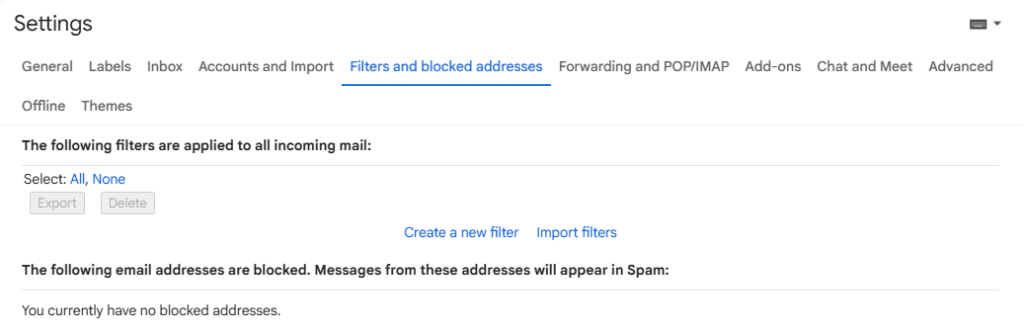
- Computer par Gmail kholein. Upar right me Settings > See all settings > Filters and Blocked Addresses par jaayein.
- Sender, subject ya words se match hone wale rules dekhein. Kisi rule ka Edit kholkar condition padhein; Continue se uske actions dekhein.
- Sirf galat condition/action badlein aur Update filter karein. Rule ki zaroorat hi na ho to uski Delete option use kar sakte hain.
- Skip the Inbox (Archive it): Email Inbox chhod deti hai, lekin All Mail me mil sakti hai.
- Delete it: Matching email Trash me chali jaati hai.
- Mark as read: Email read mark hoti hai; sirf unread emails dekh rahe hon to miss ho sakti hai.
- Apply the label: Label lagta hai. Akela yeh action email ko Inbox se nahi hatata; saath me archive action bhi check karein.
- Forward it: Matching email ki copy doosre address par ja sakti hai.
Sab filters ek saath delete na karein. Pehle rule samjhein. Filter theek karne ke baad purani affected email ko alag se dhoondhkar Inbox me laana pad sakta hai.
6. Blocked Addresses Aur Spam Behavior Check Karein
Gmail me kisi sender ko block karne par uski future emails Spam me jaati hain. Iska matlab yeh nahi ki uski email Gmail tak pahunch hi nahi sakti.
- Computer par solution 5 wala Filters and Blocked Addresses tab kholein.
- Blocked addresses ki list me sender dhoondhein. Address select karke Unblock selected addresses chunein aur confirmation poora karein.
- Sender ki purani email Spam me ho to use pehchan kar Not spam karein. Phir sender se ek nayi test email mangwayein.
Sirf ek message ko Spam se nikaalna blocked sender ko unblock karne ke barabar nahi hai. Dono checks karein. Unblock karne ke baad bhi problem rahe to filters aur spam warning dekhein.
7. Forwarding Settings Aur Gmail Ki Copy Check Karein
Automatic forwarding nayi emails ko doosre email address par bhej sakti hai; spam emails is forwarding me shamil nahi hoti. Filter-based forwarding sirf matching messages par lagti hai. Forwarding ka matlab apne aap Gmail se email delete hona nahi hai; copy ki setting bhi dekhein.
Computer par Settings > See all settings > Forwarding and POP/IMAP kholein. Kuch accounts me tab ka naam sirf Forwarding hota hai. Forwarding pehle se enabled ho to destination address aur Gmail copy wala dropdown check karein:
- Keep Gmail’s copy in the Inbox: Copy Inbox me rehti hai.
- Mark Gmail’s copy as read: Copy Inbox me rehti hai, lekin read mark hoti hai.
- Archive Gmail’s copy: Copy Inbox se hatkar All Mail me milti hai.
- Delete Gmail’s copy: Copy Trash me jaati hai, jahan deletion ke rules apply hote hain.
Forwarding rakhni ho aur email Inbox me chahiye, to copy ko Inbox me rakhne wala option chunein, phir Save Changes karein. Forwarding ki zaroorat na ho to Disable forwarding karke save karein. Filter se forwarding set ki ho to solution 5 me woh rule bhi check karein.
Google ki automatic forwarding Help guide me current setup aur disable karne ke steps hain. Unknown address dikhe to neeche diya account security section bhi follow karein.
8. Android Par Gmail App Aur Account Sync Check Karein
Web Gmail me nayi email mil rahi ho to Android app ka sync check karein. Sync phone par account ki updated emails dikhane me madad karta hai.
- Play Store se Gmail app ka available update install karein. App me sahi account kholkar Inbox ko neeche swipe karke refresh karein.
- Gmail app > Menu > Settings > apna account kholein. Data usage ke neeche Sync Gmail checked hona chahiye.
- Phone ki Settings me Account sync search karein. Sahi Google Account chunein aur Gmail ka automatic sync on rakhein. Manual refresh ke liye wahan More > Sync now mil sakta hai.
- Problem rahe to phone restart karein. Phone ka local storage lagbhag full ho to bekaar downloads hata kar jagah banayein; local storage ki kami bhi app sync ko rok sakti hai.
Android ke system menus brand ke hisab se badalte hain. Google ki guide me ek route Settings > About phone > Google Account > Account sync diya hai; apne phone par na mile to Settings ki search use karein. Refresh ke turant baad email na dikhne par baar-baar setting na badlein; sync ko thoda samay dein.
9. iPhone, Apple Mail Ya Outlook Ko Gmail Web Se Compare Karein
iPhone par official Gmail app: Sahi account select karein, Inbox ko neeche swipe karke refresh karein aur App Store se Gmail update karein. Internet check aur phone restart bhi karein.
Agar Gmail app kholne par hi emails update hoti hain, to iPhone ki Settings > General > Background App Refresh me Gmail ke liye background refresh check karein. Purani emails app me missing hon to current Gmail app me Menu > Settings > General ke neeche Data usage > Sync settings se sync hone wale din check kar sakte hain. Yeh purani mail ki sync range hai, har nayi email ki delivery ka fix nahi.
Apple Mail ya Outlook: Agar wahi email web Gmail me hai, lekin is app me nahi, to client ka sync, selected mailbox ya sign-in check karein. App update karein aur Google login ki dobara zaroorat ho to uska Sign in with Google flow use karein.
IMAP email apps ko mailbox se sync karne ka tareeka hai. Personal Gmail accounts me January 2025 se IMAP hamesha enabled hai; purani guides ka Enable IMAP checkbox dhoondhna zaroori nahi. Work/school accounts par admin controls alag ho sakte hain. Apple Mail ya Outlook me delete/archive ki gayi email ka asar Gmail par bhi pad sakta hai, isliye us app ki handling settings bhi dekhein.
10. Sender Ki Taraf Aur Google Service Status Check Karein
- Sender se recipient ka poora address match karwayein. Naam sahi dikhne ke bawajood saved contact me purana ya galat address ho sakta hai.
- Sender apna Sent folder dekhe. Message Drafts ya Outbox me ho to shayad bheja hi nahi gaya. Sent me dikhna bhi Inbox delivery ki guarantee nahi hai.
- Sender ko bounce ya delivery error mila ho to uska exact reason poochhein. Galat address, recipient storage ya rejection ka message agla check tay karne me madad karega.
- Ek naya subject rakhkar bina attachment aur links ki simple test email mangwayein. Send karne ka samay note karein aur web Gmail me search karein.
Kai logon ko ek saath Gmail ki problem ho to official Google Workspace Status Dashboard me Gmail ki entry aur incident details dekhein. Personal Gmail ki service problem check karne me bhi yeh useful signal hai, lekin yeh aapke individual account ka test nahi. Bina incident ya doosre evidence ke Google server down hone ka nateeja na nikalein.
Sirf Ek Person Ki Email Receive Nahi Ho Rahi To Kya Karein?
Agar doosre logon ki emails aa rahi hain, to pehle us sender ka address in:anywhere ke saath search karein. Phir Spam, blocked list aur sender se match hone wale filters dekhein. Sender se aapke address ki spelling aur bounce message bhi confirm karwayein.
Simple test email aa jaaye, lekin attachment ya links wala original message na aaye, to sender us message ke error ko check kare. Content ya attachment ki security checking ek wajah ho sakti hai; sirf is test se exact cause confirm nahi hota.
Kisi company ke domain se emails hi nahi mil rahi hon to uske sender/IT ko batayein. Unki email authentication ya sending setup me problem ho sakti hai, jise aapki Inbox settings badalne se theek nahi kiya ja sakta.
Gmail Web Me Email Aa Rahi Hai Lekin Phone App Me Nahi
Is comparison ko ek hi account aur ek hi test email ke saath karein. Web par email milne ka matlab us message ki Gmail tak delivery ho gayi hai; phone par delay app sync ya display ki taraf ishara karta hai, lekin exact cause abhi confirm nahi hota.
- Phone me bhi uska subject search karein. Email kisi doosre tab, label ya read state me ho sakti hai.
- Android par solution 8 ka Sync Gmail aur system account sync check karein.
- iPhone par solution 9 ke refresh, update aur zaroorat ke hisab se background refresh checks karein.
- App me email mil gayi, sirf alert missing hai, to receiving troubleshooting rok kar notification settings check karein.
Gmail Me Email Late Kyon Aati Hai?
Late delivery aur phone par late dikhna alag ho sakte hain. Sender ka slow connection, sending server ki temporary problem, mail processing ya service disruption delivery me delay kar sakte hain. Work/school accounts me security scanning ya admin review bhi samay le sakte hain. Email Gmail par pahunch chuki ho to app sync ya third-party mail client ki checking me delay ho sakta hai.
Email milne ke baad computer par use kholein. Reply ke paas teen dots wala More > Show original chunein. Created at ke paas delivery time dekhein. Yeh message ki delivery samajhne me madad karta hai; phone notification kab aayi, yeh alag baat hai.
Har email ke liye ek fixed delivery time nahi diya ja sakta. Zaroori message na mil raha ho to sender se bounce aur test email check karwayein. Baar-baar sirf refresh karna sender ki taraf ki problem solve nahi karega.
Google Workspace Account Me Email Receive Nahi Ho Rahi
Office ya school ka Google Workspace account ho to personal Gmail se alag admin settings apply ho sakti hain. Organization ke routing rules, spam policy, compliance checks, quarantine, account status aur storage restrictions ki wajah se delivery affect ho sakti hai. Quarantine me roki gayi email zaroori nahi ki aapke Spam me dikhe.
Basic checks ke baad IT/admin ko sender aur recipient ke addresses, send karne ka samay, subject aur bounce ka exact error dein. Admin Email Log Search aur quarantine se message trace kar sakta hai. In settings ka access aam user ko nahi milta; organization ke controls ko bypass karne ki koshish na karein.
Unknown Filters Ya Forwarding Mile To Account Security Check Karein
Aapne forwarding set nahi ki, lekin kisi anjaan address par emails ja rahi hain? Ya aisa filter hai jo aapne nahi banaya? Unfamiliar account activity ke saath yeh unauthorized access ka sign ho sakta hai. Sirf email ko Inbox me wapas laana kaafi nahi hoga.
- Unknown forwarding ko disable karke save karein. Suspicious filter ki condition aur action samajhkar use hata dein.
- Google Account ka Security Checkup karein. Recent security activity, signed-in devices aur connected third-party apps review karein.
- Unauthorized access ka doubt ho to password badlein, unfamiliar devices se sign out karein aur 2-Step Verification check karein.
Poore steps ke liye Google Account secure kaise kare guide padhein. Agar Gmail fix karne ke naam par koi message password ya OTP maang raha ho, to us link par details na dein. fake links aur phishing ko kaise pehchane samajhna aise messages ko check karne me madad karega.
Gmail Email Receiving Problem Se Jude FAQs
Gmail me email receive kyon nahi ho rahi?
Galat account, Spam, archive, filters, full storage ya sender ki problem wajah ho sakti hai. Same email ko web Gmail me search karke pehle dekhein ki actual delivery missing hai ya sirf phone app me nahi dikh rahi.
Gmail storage full hone par email receive hoti hai?
Storage limit full hone par sending aur receiving ruk sakti hai; incoming email sender ko wapas ja sakti hai. Space available hone ke baad pehle bounce hui email sender se dobara mangwayein.
Gmail Spam folder kaise check karein?
Gmail app me Menu kholkar Spam chunein. Computer par left menu me Spam milega; zaroorat ho to More kholein. Pehchani hui sahi email ko Not spam karein.
Archived Gmail email kahan milti hai?
Archived email All Mail aur Search se mil sakti hai. Archive karne se email Inbox se hatti hai, delete nahi hoti. Move to Inbox se use wapas laa sakte hain.
Gmail me blocked sender ko kaise unblock karein?
Computer par Settings me See all settings kholkar Filters and Blocked Addresses chunein. Blocked list me sender select karke Unblock selected addresses karein. Purani email ke liye Spam bhi check karein.
Gmail web me email hai lekin app me kyon nahi dikh rahi?
App me doosra account, alag category ya sync problem ho sakti hai. Sahi account, Search aur refresh check karein. Android par Sync Gmail dekhein; iPhone par app update aur zaroorat ho to background refresh check karein.
Sirf ek sender ki email receive nahi ho rahi to kya karein?
Us sender ko Spam, blocked list aur filters me check karein. Sender se recipient address aur bounce error confirm karwayein, phir bina attachment ki simple test email mangwayein.
Gmail me delayed email ko kaise check karein?
Email milne par computer me message kholkar More > Show original chunein. Created at ke paas delivery time dekhein. Email abhi mili hi nahi ho to sender ka error aur web Gmail ki Search pehle check karein.
Gmail Me Missing Emails Ka Problem Step-by-Step Check Karein
Inbox me email na dikhna aur email ki delivery fail hona alag baatein hain. Sahi account, Search, Spam, All Mail, storage aur filters se shuru karein. Web aur app ka comparison agla check chunne me madad karega. Unknown forwarding ya filters milne par email dhoondhne ke saath account security bhi theek karein.