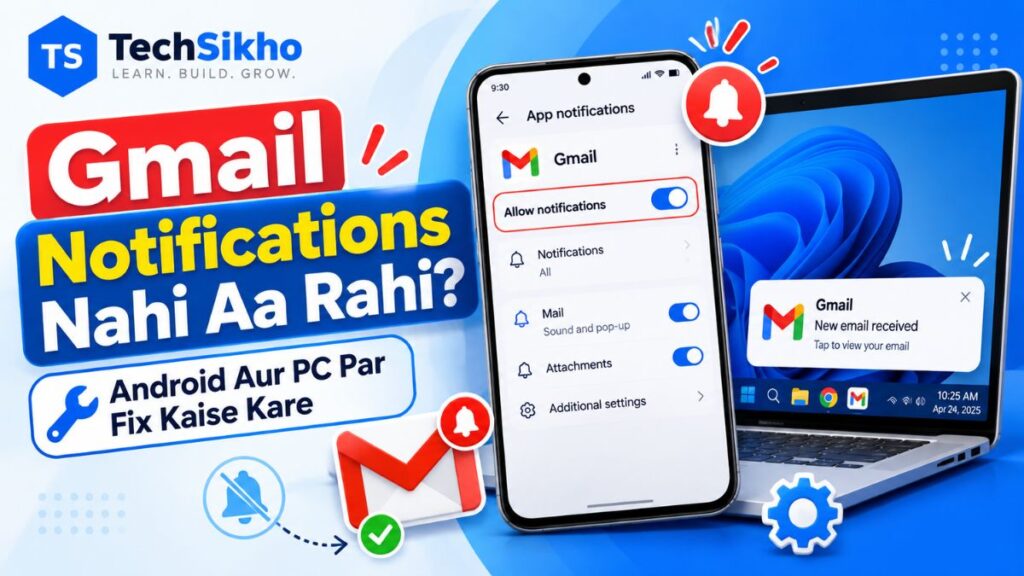
Gmail Notifications Nahi Aa Rahi To Sabse Pehle Kya Check Karein?
Gmail me email aa chuki hai, lekin phone par alert nahi mila ya laptop par banner nahi dikha? Agar Gmail Notifications Nahi Aa Rahi, to pehle pata karein ki dikkat email pahunchne me hai, notification dikhne me hai ya sirf sound me.
Gmail kholkar sahi account me nayi email dhoondhein. Email mil rahi hai to neeche notification settings check karein. Agar Gmail me email receive nahi ho rahi, to woh alag problem hai; pehle uska reason samajhna zaroori hai.
Android par Gmail app aur phone ki settings kaam karti hain. PC par Gmail website, Chrome aur Windows ke controls check karne hote hain. Basic checks se shuruaat karein; har baar Gmail reinstall karna ya Google Account remove karna zaroori nahi hota.
Silent notification notification panel me hoti hai, lekin sound nahi bajta. Missing notification panel me bhi nahi dikhti. Delayed notification baad me aati hai. Banner, sound aur lock-screen preview alag controls hain; sirf pop-up na dikhne ko email na aana na samjhein.
Gmail Notification Problem Ka Reason Kaise Pehchanein?
Yeh table shuruaati jaanch ke liye hai. Har row me possible reason diya gaya hai, pakka diagnosis nahi. Phone par upar se swipe karke notification panel aur PC par Windows + N se notification center bhi dekhein.
| Problem | Possible Reason | Kya Check Karein |
|---|---|---|
| Email aa rahi, alert nahi | App alerts off | Gmail settings |
| App kholne par mail dikhti | Sync ya background limit | Sync, data, battery |
| Sirf important mail ka alert | Priority preference | Email notifications |
| Alert hai, sound nahi | Silent mode ya sound off | Sound aur channel |
| PC par pop-up nahi | Gmail/browser permission | Desktop alerts, Chrome |
| Windows alerts chhupe hain | Do Not Disturb | Windows settings |
| Ek account me problem | Account ki alag setting | Sahi email address |
Test ka tareeka: ek waqt me ek setting badlein, phir doosre trusted email account se naya, bina sensitive information wala message bhejkar check karein. Purani email ka alert dobara aane ko test na banayein.
Android Phone Me Gmail Notifications Nahi Aa Rahi? 10 Solutions
Pixel, Samsung, Xiaomi, OnePlus, Vivo aur Oppo par menu names aur unki jagah alag ho sakti hai. Android version, Gmail update aur account type se bhi options badal sakte hain. Koi option na mile to Settings ki search ya apne phone ki official help use karein.
1. Gmail App Ki Notifications Enable Karein
- Gmail app kholein aur upar left me Menu, yani teen horizontal lines, tap karein.
- Settings me jaakar problem wale Google Account ka email address chunein.
- Email notifications kholein. Kuch versions me iska naam Notifications dikh sakta hai.
- Apni zaroorat ke mutabik notification preference chunein.
All zyada naye mail alerts ke liye hai, High priority only selected high-priority emails ke liye, aur None email alerts band karta hai. Agar aap All new mail naam dhoondh rahe hain, official Android demo me option All dikhaya gaya hai.
All ko Spam samet har message ka guaranteed alert na samjhein; labels aur Inbox settings ka bhi asar padta hai. Current menu ke liye Google ki Gmail notifications Help dekh sakte hain.
2. Android App Notification Permission Check Karein
- Phone me Settings > Notifications > App notifications > Gmail kholein. Zaroorat par All apps chunein.
- Doosra common route Settings > Apps > Gmail > Notifications hai. Jahan supported ho, Gmail icon ko long-press karke App info > Notifications bhi khol sakte hain.
- Allow notifications ya app ka main notification switch on karein.
- Notification categories dikhne par email wali category bhi check karein. Banner chahiye to available Pop on screen ya pop-up control dekhein.
Android ke channels/categories system ke alert controls hain; yeh Gmail ke Primary/Promotions tabs se alag hain. Email channel Silent ho to alert panel me mil sakta hai, sound ke bina.
Lock-screen alerts ki setting bhi dekhein. Privacy ke liye sensitive preview chhupa sakte hain; email ka poora text lock screen par dikhana zaroori nahi. Available controls Android ki notification Help me samjhaye gaye hain.
3. Gmail Sync Settings Check Karein
- Gmail me Menu > Settings > apna account kholein.
- Data usage ke neeche Sync Gmail mile to check karein ki woh enabled hai.
- Inbox me upar se neeche swipe karke manual refresh karein aur dekhein nayi email milti hai ya nahi.
Phone ki Google Account sync setting bhi check karein. Pixel par documented route Settings > About phone > Google Account > Account sync hai. Doosre phones me Passwords & accounts, Passwords, passkeys & autofill ya Manage accounts ke andar apna account chunein. Gmail ka sync switch off ho to on karein; manual test ke liye available Sync now use kar sakte hain.
Sync aur notification permission ek setting nahi hain. Sync data refresh karta hai; alert dikhana alag permission par depend karta hai. Manual refresh se mail milna, automatic background sync theek hone ka proof nahi hai.
4. Background Data Aur Data Saver Restrictions Check Karein
- Wi-Fi aur mobile data par alag test karein. Agar sirf mobile data par dikkat hai, data restrictions pehle dekhein.
- Settings > Apps > Gmail me data-usage section kholein. Aapke phone me Background data control mile to check karein ki access blocked nahi hai.
- Pixel par Settings > Network & internet > Data Saver kholein.
- Data Saver on rakhna hai aur Gmail ko exception chahiye, to Unrestricted data > Gmail enable karein, agar option available hai.
Data Saver aam taur par background mobile data ko limit karta hai; Wi-Fi par behavior alag ho sakta hai. Gmail khula ho tab data chalna, background access theek hone ki guarantee nahi. Unrestricted data mobile data usage badha sakta hai, isliye sirf zaroorat wale app ko exception dein.
5. Battery Saver Aur App Battery Restrictions Check Karein
- Quick Settings me Battery Saver dekhein. Battery level theek ho to test ke liye ise temporarily off karein.
- Pixel par Settings > Apps > See all apps > Gmail > App battery usage kholein aur Allow background usage check karein.
- Doosre phones me Battery, Restricted, Optimized ya Unrestricted jaise controls mil sakte hain. Sab options har phone par nahi hote.
- Gmail Restricted ho to pehle normal/Optimized behavior test karein. Zaroorat rahe aur option mile tab Gmail ke liye kam restriction wala mode test karein.
Battery Saver background refresh ko limit kar sakta hai. Pixel ka Extreme Battery Saver apps pause bhi kar sakta hai; paused app alerts nahi bhejta. Kuch manufacturers ke additional battery controls bhi background activity par asar dalte hain.
Kam restriction se battery usage badh sakta hai. Sab apps ki battery optimization band na karein. Sirf Gmail ki setting badlein, naya test karein aur fayda na ho to pehle wali setting wapas rakh dein.
6. Do Not Disturb Aur Notification Sound Check Karein
- Quick Settings me Do Not Disturb check karein. Test ke liye off karein. Naye Android versions me Settings > Modes > Do Not Disturb mil sakta hai; doosre phones me Sound & vibration ke andar dekhein.
- Bedtime ya kisi scheduled mode se DND dobara on to nahi ho raha, yeh bhi dekhein.
- Volume button dabakar expanded volume controls kholein. Notification volume ya phone ke combined ring/notification slider ko check karein; sirf media volume badhana kaafi nahi.
- Gmail me Menu > Settings > account > Notification sounds kholein. Email section me Notification sound > Sound mile to None ki jagah tone chunein.
System ki Gmail notification category me Alerting/Default, Sound aur Vibration ke available controls dekhein. Banner nahi chahiye lekin sound chahiye, to inhe apni preference ke hisab se set karein. Panel me email alert mil raha hai to delivery ki jagah sound/DND ki jaanch par dhyan dein.
7. Sahi Gmail Account Ki Notification Settings Dekhein
- Gmail me profile photo tap karke personal, work aur secondary email addresses pehchanein.
- Jis address par test email bheji thi, usi ka Inbox dekhein. All inboxes me mail milne se account ka farq chhup sakta hai.
- Us account ki Gmail Settings kholein; doosre account par ki gayi changes ko iske liye bhi lagu na maanein.
Ek account ka alert aana useful clue hai: phone sabhi Gmail alerts ko poori tarah block nahi kar raha hoga, lekin account ya channel ki setting alag ho sakti hai. Har account ka alag test karein; account remove karke dobara add karna pehla fix nahi hai.
8. Gmail Labels Aur Inbox Categories Check Karein
Email Primary me hai ya Promotions, Social, Updates me? Gmail ke default alerts Primary par kendrit hote hain. Promotions ki email par alert na milne ko turant app kharab hona na samjhein, aur yeh bhi na maanein ki us category ke alerts kabhi mil hi nahi sakte.
- Gmail > Menu > Settings > account > Manage labels kholein.
- Jis label ka alert chahiye, use chunein.
- Sync messages me Last 30 days ya All chunein. Label sync ke bina uski notifications enable nahi hoti.
- Us label ke available notification controls, jaise Label notifications, enable karein.
High priority only label preferences ko override kar sakta hai. Kisi filter se email Inbox skip karke label me ja rahi ho, to uska alert relevant settings par depend karega. Pehle mail ki actual jagah dekhein; har filter ko delete na karein.
9. Gmail App Update Aur Phone Restart Karein
- Google Play Store kholein, Gmail search karein aur official Google app ki listing dekhein.
- Update button mile to update karein. Vikalp: profile photo > Manage apps & device > Updates available > See details me Gmail dekhein.
- Phone ko normally restart karein. Phir Gmail ek baar kholkar sahi account aur Inbox load hone dein.
- System update pending ho to Settings me Software updates search karein. Supported Android devices me System > Software updates route milta hai.
Updates fixes la sakte hain, lekin har notification issue update se solve hoga, yeh guarantee nahi. Third-party Gmail APK ya notification fixer app install na karein. Google Account hatane se device par us account ka email, contacts aur settings bhi remove ho sakte hain; isse doosri Google services ka use disturb ho sakta hai.
10. Gmail App Cache Aur Final Troubleshooting
- Basic settings theek hone ke baad Settings > Apps > Gmail > Storage & cache > Clear cache try kar sakte hain. Kuch phones me section sirf Storage ke naam se hota hai.
- Gmail dobara kholein aur account, sync aur alert preferences check karein.
- Home screen par laut aayein; Gmail ko Force stop na karein. Doosre trusted account se ek naya test message bhejein.
- Pehle notification panel dekhein. Alert na mile to Gmail kholkar check karein ki message pahunch chuka hai ya app kholne par hi load hota hai.
Clear cache aur Clear storage/Clear data alag hain. Cache temporary files hatata hai; agla app load thoda slow ho sakta hai. Clear storage app ka local data reset karta hai aur Gmail ke drafts/settings jaise items ko affect kar sakta hai. Is guide me sirf cache clear karne ka step hai, storage/data clear karne ka nahi.
Cache clear karna guaranteed solution nahi. Dikkat rahe to phone model, Android/Gmail version, affected account type aur test result note karke device ki official help ya Gmail Help use karein. Support screenshot me private email text aur addresses chhupa dein.
PC Ya Laptop Par Gmail Notifications Nahi Aa Rahi? 6 Solutions
Neeche ke steps Windows 11 par Chrome me khuli Gmail website ke liye hain. Yeh kisi alag Windows Gmail app ki settings nahi hain. Android app ke alerts aur desktop alerts ko alag test karein.
1. Gmail Desktop Notifications Enable Karein
- Chrome me mail.google.com kholein aur sahi account me sign in karein.
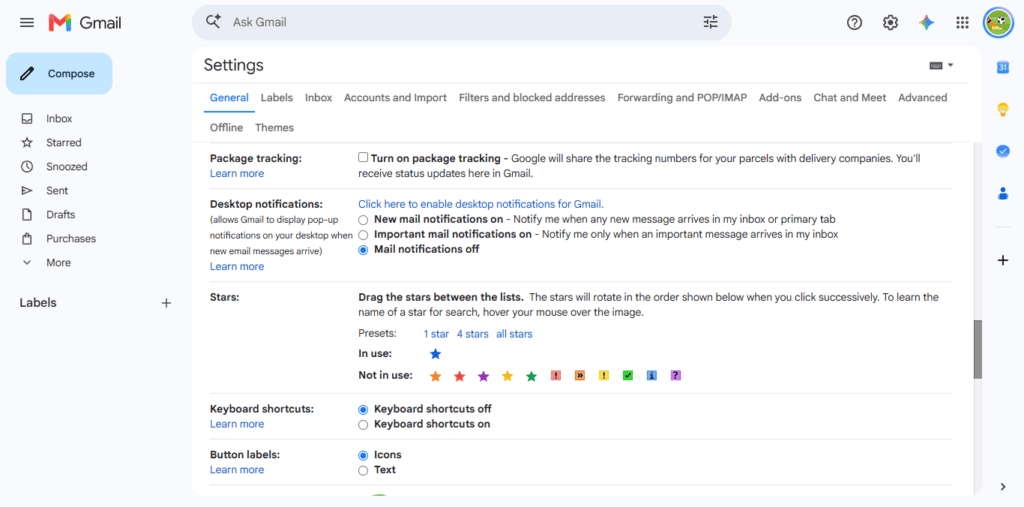
- Gmail ke gear icon se Settings > See all settings kholein. General tab me Desktop notifications dhoondhein.
- New mail notifications on ya zaroorat ke mutabik Important mail notifications on chunein. Mail notifications off alerts band rakhta hai.
- Sound chahiye to Mail notification sounds me tone chunein; None sound band karta hai. Neeche Save Changes zaroor karein.
Agar Inbox categories use ho rahi hain, New mail notifications on par desktop alerts Primary category ke messages ke liye hote hain. Is option ko Promotions aur Social samet har email ka alert na samjhein. Multiple accounts hon to har relevant account me setting check karein.
2. Chrome Me Gmail Notification Permission Allow Karein
- Gmail khule hone par address bar me website address ke paas View site information icon click karein.
- Notifications control mile to allow/on karein. Option na dikhe to site ki settings kholein.
- Poora route: Chrome > More > Settings > Privacy and security > Site settings > Notifications.
- mail.google.com blocked list me ho to uski permission Allow karein. Zaroorat par Allowed to send notifications > Add me https://mail.google.com add karein.
Uske baad Gmail tab reload karke test karein. Sirf Gmail ko permission dein; har website ke alerts allow karna zaroori nahi. Pop-ups and redirects ki permission alag hai, use badalna Gmail notification permission ka substitute nahi hai.
Chrome kabhi unused sites ki notification permission hata sakta hai. Isliye pehle permission di thi tab bhi dobara check karna useful hai. Route Chrome ki official notifications Help me diya hai.
3. Windows 11 Notification Settings Check Karein
- Start > Settings > System > Notifications kholein aur main Notifications switch on dekhein.
- Apps/senders ki list me Google Chrome dikh raha ho to uski entry kholein aur alerts allow karein.
- Available controls me Show notification banners, Show notifications in notification center aur Play a sound apni preference se set karein.
Chrome entry na mile to pehle Gmail aur site permissions enable karke naya message test karein, phir list dobara dekhein. Har PC par Chrome ki entry pehle se maujood hogi, yeh maan kar na chalein.
Sirf banner gayab ho to Windows + N kholkar dekhein. Windows ka switch aur Gmail website ki permission alag hain; ek on karne se doosra apne aap on nahi hota.
4. Windows Do Not Disturb Aur Focus Check Karein
- Settings > System > Notifications me Do not disturb test ke liye off karein.
- Turn on do not disturb automatically ke rules dekhein. Fixed time, gaming, display duplicate karna ya full-screen app se yeh dobara on ho sakta hai.
- Settings > System > Focus check karein. Focus session default taur par DND on kar sakta hai; test ke liye session end karein aur DND ki actual state dobara dekhein.
DND Gmail ki email delivery band nahi karta. Windows me kai alerts seedhe notification center me chale jate hain; priority exceptions ka behavior alag ho sakta hai. Controls ke liye Microsoft ki Windows notifications Help dekhein.
5. Browser Aur Gmail Tab Ka Behavior Samjhein
Desktop alerts test karte waqt Gmail me sign in rahen aur uska tab khula rakhein. Aap doosra tab ya app use kar sakte hain; Gmail tab close karna aur sirf usse doosre tab par jana alag baatein hain. Chrome ke Incognito mode me site notifications nahi milti, isliye normal window use karein.
Browser poori tarah band hone par Gmail alert milne ki guarantee na maanein. Browser background behavior, session aur platform restrictions alag ho sakte hain. Computer shutdown ho to us par live desktop alert nahi dikhega.
Work aur personal Chrome profiles ki settings alag ho sakti hain. Gmail jis profile me khula hai, permission bhi usi me check karein. Tab baar-baar inactive hokar reload ho raha ho to Chrome ki Performance settings me sirf Gmail ke liye Always keep these sites active exception test kar sakte hain; sab performance features band karna zaroori nahi.
6. Test Email Se PC Notifications Verify Karein
- Sahi Gmail account, desktop alerts, Chrome site permission aur Windows notifications on verify karein.
- DND off rakhein, PC awake rakhein aur Gmail tab khula chhodkar doosre tab/app par chale jayein.
- Doosre trusted account se ek naya subject, jaise Notification test 1, wala normal email bhejein. OTP ya private document ki zaroorat nahi.
- Banner, sound aur notification center dekhein. Phir Gmail kholkar mail aur uski category check karein.
Result se agla check chunein: mail hi nahi mili to receiving issue; Promotions me mili to category behavior; notification center me hai lekin banner nahi to Windows presentation/DND; banner hai par sound nahi to Gmail sound, Windows sound aur speaker volume dekhein.
Primary me nayi email mil gayi lekin kahin alert nahi hai, to Gmail, Chrome aur Windows ki settings ek-ek karke dobara check karein. Sirf baar-baar email bhejne se settings repair nahi hoti.
Android Aur PC Par Gmail Notifications Me Kya Difference Hai?
| Setting | Android | Windows PC |
|---|---|---|
| Alert controls | Gmail app + Android | Gmail web + Chrome + Windows |
| Background update | App sync, data access | Gmail session, browser state |
| Sound | Gmail/email channel, phone volume | Gmail sound, browser/Windows audio |
| Power restrictions | Battery/background limits | PC power state, browser activity |
| Do Not Disturb | Android DND/Modes | Windows DND/Focus |
Isliye phone par Gmail alerts theek hone se laptop ke alerts confirm nahi hote. Dono devices par ek-ek nayi test email se result dekhein.
Gmail Notification Late Kyon Aati Hai?
Message ka Google Account me pahunchna, phone par sync hona aur alert dikhna alag samay par ho sakta hai. Pehle dekhein ki email khud late load hoti hai ya mail pehle aa jati hai aur alert baad me dikhta hai.
- Battery Saver/background limit: screen off hone par app ka kaam kam ho sakta hai.
- Weak internet ya Data Saver: background connection/sync ruk-ruk kar ho sakta hai.
- Sync issue: app kholne ya refresh karne par hi naya mail load ho sakta hai.
- Browser/session: band browser ya inactive tab ka behavior desktop alerts ko affect kar sakta hai.
- OS suppression: DND se alert chup reh sakta hai; notification baad me dekhna actual delivery delay se alag hai.
High priority only delay timer nahi hai. Isme kam-priority message ka alert chuna hi nahi ja sakta; uska bas der se aana zaroori nahi. Push notifications ke liye har device par ek fixed delivery time ki guarantee nahi di ja sakti.
Gmail Me Sirf Kuch Emails Ki Notifications Kyon Aati Hain?
Ek missing alert wale message ko example banayein: woh kis account, category aur label me aaya? Kya kisi filter ne Inbox skip karaya? Kya account ki preference selective hai ya Android ka relevant channel silent hai? Isse bina zaroorat doosri settings badalne se bachenge.
Sirf zaroori emails ke alerts chahiye to selective notification preference theek ho sakti hai. Zyada alerts chahiye to account aur label settings us hisab se rakhein. All har reader ke liye best choice nahi hai; useful alerts aur kam interruptions ke beech apni zaroorat dekhein.
Gmail Storage Full Hone Se Notifications Par Kya Asar Padta Hai?
Google Account ki storage limit poori ho jaye to Gmail me actual email receiving ruk sakti hai. Nayi email receive hi nahi hui, to us message ka naya-mail alert bhi nahi milega. Yeh sirf notification permission wali problem nahi hai.
Agar Gmail storage full ho gayi hai, to storage guide se receiving problem check karein. Lekin emails normally aa rahi hain aur sirf alerts missing hain, to purani emails delete karna pehla fix nahi. Phone ki local storage aur Google Account ki storage ko bhi alag samjhein.
Gmail Notifications Ke Naam Par Fake Alerts Se Kaise Bachein?
Unknown website ka Google Security Alert, Gmail account blocked popup, bina request ka OTP ya tech-support number dekhkar turant login na karein. Notification me Google ka naam/logo hona uske asli hone ka proof nahi hai.
Gmail app khud kholein ya browser me mail.google.com type karein. Security activity verify karne ke liye myaccount.google.com/security kholein aur Recent security activity section check karein. Suspicious popup, caller ya notification fixer ko password/OTP na dein. Account ki protection ke liye Google Account secure kaise kare guide dekhein.
Work Ya School Gmail Me Notifications Nahi Aa Rahi To Kya Karein?
Google Workspace account, managed Chrome ya Android Work Profile me organization ki policies lagu ho sakti hain. Work Profile paused ho to uske apps aur notifications bhi pause hote hain. Work tab ya Quick Settings ke work control me profile ki state check karein.
Notification permission locked/greyed out ho ya organization-managed message dikhe, to IT/admin se check karayein. Unhe device, affected account aur test result batayein. Personal account chalne ka matlab work account par bhi wahi policies hain, yeh zaroori nahi; restrictions bypass karne ki koshish na karein.
Gmail Notifications Fix Karte Waqt Common Mistakes
- Email receiving aur notification issue ko ek samajhna.
- App alerts off hone par sirf internet ko blame karna.
- High priority preference ko ignore karna.
- Galat Gmail Account ki setting badalna.
- Gmail aur Android permissions ko ek control samajhna.
- Battery Saver/background limits check na karna.
- Sound off hone ko email na milna samajhna.
- Chrome permission aur Windows controls ko confuse karna.
- DND aur automatic schedules bhool jana.
- Bina reason Gmail uninstall karna.
- Google Account unnecessarily remove karna.
- Clear cache ko Clear storage/Data samajh lena.
- Unknown notification fixer app install karna.
Gmail Notifications Nahi Aane Se Jude FAQs
Gmail notifications nahi aa rahi to kya kare?
Pehle nayi email account me pahunchne ki pushti karein. Phir affected device ke alert controls check karein aur ek setting badalne ke baad naya test karein.
Gmail me emails aa rahi hain lekin notification kyon nahi milti?
App/site permission, selective mail preference, silent channel ya DND possible reasons hain. Sirf Inbox me email milne se sound aur banner enabled hona confirm nahi hota.
Android par Gmail notifications kaise on kare?
Gmail ke account settings me Email notifications chunein. Phone ki App notifications list me Gmail bhi allowed hona chahiye; dono controls check karein.
Gmail notification sirf app kholne par kyon aati hai?
Yeh background sync, data access ya battery restriction ka clue ho sakta hai. App kholne se pehle aur baad ka test result compare karein.
Gmail notifications me sound kaise on kare?
Gmail ke Notification sounds me tone chunein, email channel silent na rakhein aur notification volume dekhein. PC par Mail notification sounds aur Windows audio check karein.
Gmail me sirf important emails ki notifications kyon aati hain?
Priority-only preference selected ho sakti hai. Alert se chhoote mail ka account, category aur label bhi dekhein; sirf internet speed iska reason nahi hota.
Gmail ki notification late kyon aati hai?
Background restrictions, unstable internet ya sync delay possible hain. Pehle se aaye alert ko DND ke baad dekhna actual late delivery se alag hai.
Battery Saver Gmail notifications ko affect karta hai?
Haan, kuch devices par background refresh limit ya apps pause ho sakte hain. Temporary comparison test karein; poore phone ki optimization band na karein.
PC par Gmail desktop notifications kaise enable kare?
Gmail ki See all settings me Desktop notifications choose karke Save Changes karein. Saath me browser aur Windows ki permissions bhi chahiye.
Chrome me Gmail notifications allow kaise kare?
Gmail kholkar View site information me Notifications allow karein, ya Chrome ki Site settings me mail.google.com ka permission badlein.
Windows 11 me Gmail notifications kyon nahi dikh rahi?
Browser blocked ho sakta hai, banners off ho sakte hain ya DND active ho sakta hai. Notification center me alert milta hai ya nahi, pehle dekhein.
Do Not Disturb Gmail notifications ko rok sakta hai?
DND sound/banner ko suppress kar sakta hai; exact behavior device aur exceptions par depend karta hai. Yeh Gmail server par email aane ko band nahi karta.
Multiple Gmail Accounts ki notifications alag hoti hain?
Haan. Har account ki preference check karein aur test email ka recipient address confirm karein. Ek successful account test se sab accounts verify nahi hote.
Gmail storage full hone se notifications band ho sakti hain?
Storage limit par nayi emails receive hona ruk sakta hai, isliye unke alerts nahi milenge. Normally aa rahe mail ke missing alerts ko alag troubleshoot karein.
Gmail app ka cache clear karna safe hai?
Clear cache temporary files hatata hai aur server ke emails delete nahi karta. Clear storage/Data alag action hai; use isi step ka hissa samajhkar na dabayein.
Gmail Notifications Ko Dobara Sahi Tarike Se Check Karein
Pehle receiving aur alert issue ka farq pakdein. Android par app permissions, sync aur background restrictions dekhein; PC par Gmail, Chrome aur Windows ke controls check karein. Har change ke baad nayi test email se banner, notification panel aur sound ka result alag note karein.
Jo setting badalne se farq pada, use apni zaroorat ke hisab se rakhein. Bina wajah data clear, account remove ya app reinstall karne se bachein. Is tarah aap samajh payenge ki dikkat kis setting se judi thi aur dobara hone par kahan check karna hai.